This is default featured slide 1 title

Go to Blogger edit html and find these sentences.Now replace these sentences with your own descriptions.This theme is Bloggerized by Lasantha Bandara - Premiumbloggertemplates.com.

This is default featured slide 2 title

Go to Blogger edit html and find these sentences.Now replace these sentences with your own descriptions.This theme is Bloggerized by Lasantha Bandara - Premiumbloggertemplates.com.

This is default featured slide 3 title

Go to Blogger edit html and find these sentences.Now replace these sentences with your own descriptions.This theme is Bloggerized by Lasantha Bandara - Premiumbloggertemplates.com.

This is default featured slide 4 title

Go to Blogger edit html and find these sentences.Now replace these sentences with your own descriptions.This theme is Bloggerized by Lasantha Bandara - Premiumbloggertemplates.com.

This is default featured slide 5 title

Go to Blogger edit html and find these sentences.Now replace these sentences with your own descriptions.This theme is Bloggerized by Lasantha Bandara - Premiumbloggertemplates.com.

Showing posts with label Redisplay the folder option is missing from windows explorer. Show all posts

Sunday, October 30, 2011

Redisplay the folder option is missing from windows explorer


Redisplay the folder option is missing from windows explorer

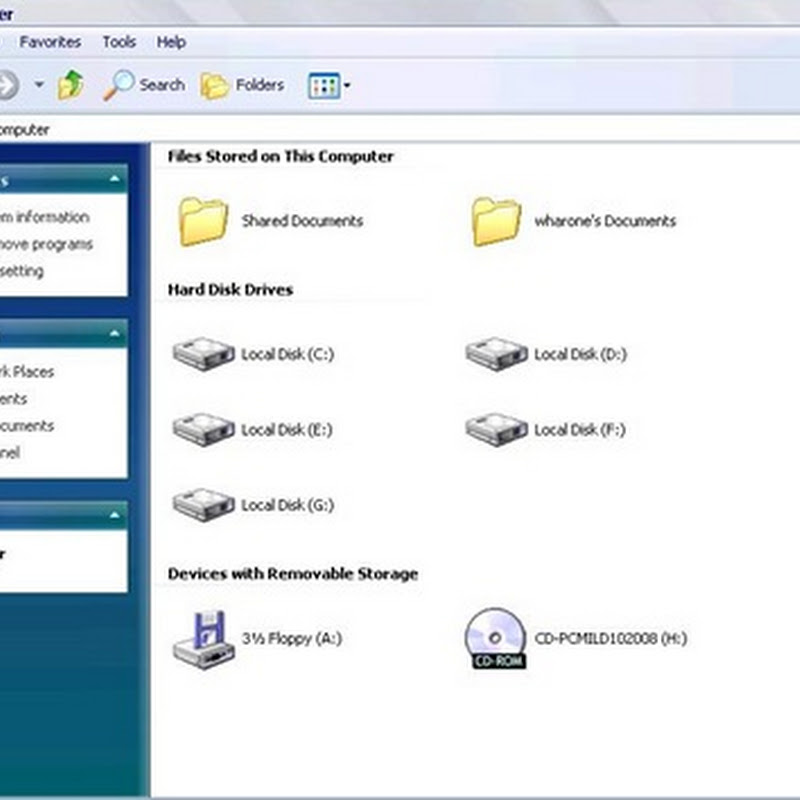
This actually is a problem that we often encounter in our computer ..
Folder Option configuration is useful for folders including show / hide hidden folders.
Usually the missing folder option can be caused by viruses ato inadvertent wrong setting,
To show the Folder Options, can be followed langkah2 following:

1. Close all programs that are running, so as not to interfere with the group policy.

2. Click Start and then Run, or you can also press the Windows + R, type gpedit.msc and then enter.

3. Once the window appears select the user group policy configuration -> Administrative Templates -> Windows component.

4. In the Windows Component, open the folder in Windows Explorer, double-click on the "Remove the folder options menu items from the tool menu"

5. Put a check mark to disable or not configure, and then click Apply.

Now check back windows explorer, a check on the tools menu, and items missing folder options will appear again.

You can also use the software that called re-enabled portable you can download here